1. Home
  2. /
  3. Technical Information
  4. /
  5. Multi-Camera Stream with...
Search
Search

Multi-Camera Stream with OBS

Frequently asked questions

Can you give me a video guide for Multi Stream with OBS?

Yes, here it is:
https://www.youtube.com/watch?v=nZd8hQLj_is&list=PL189OCUqNbDKhufQDB0FyYOiH1BoyAY-r&index=1

Can you give me a video guide for how to switch between setups in Multi Stream with OBS?

Yes, here it is:
https://www.youtube.com/watch?v=0JS4p2nWhJk&list=PL189OCUqNbDKhufQDB0FyYOiH1BoyAY-r&index=2

🎯Take your show to the Next Level

Looking to make your streams stand out and attract more Members? With our easy-to-use Multi-Camera streaming feature, powered by OBS, you can create exciting, professional shows that keep viewers engaged—and encourage higher spending!

To stream with multiple cameras on LiveJasmin, you’ll need two cameras, OBS, and the LiveJasmin OBS Scene Pack:📥 Download the LiveJasmin OBS Multi-Camera Scene Pack

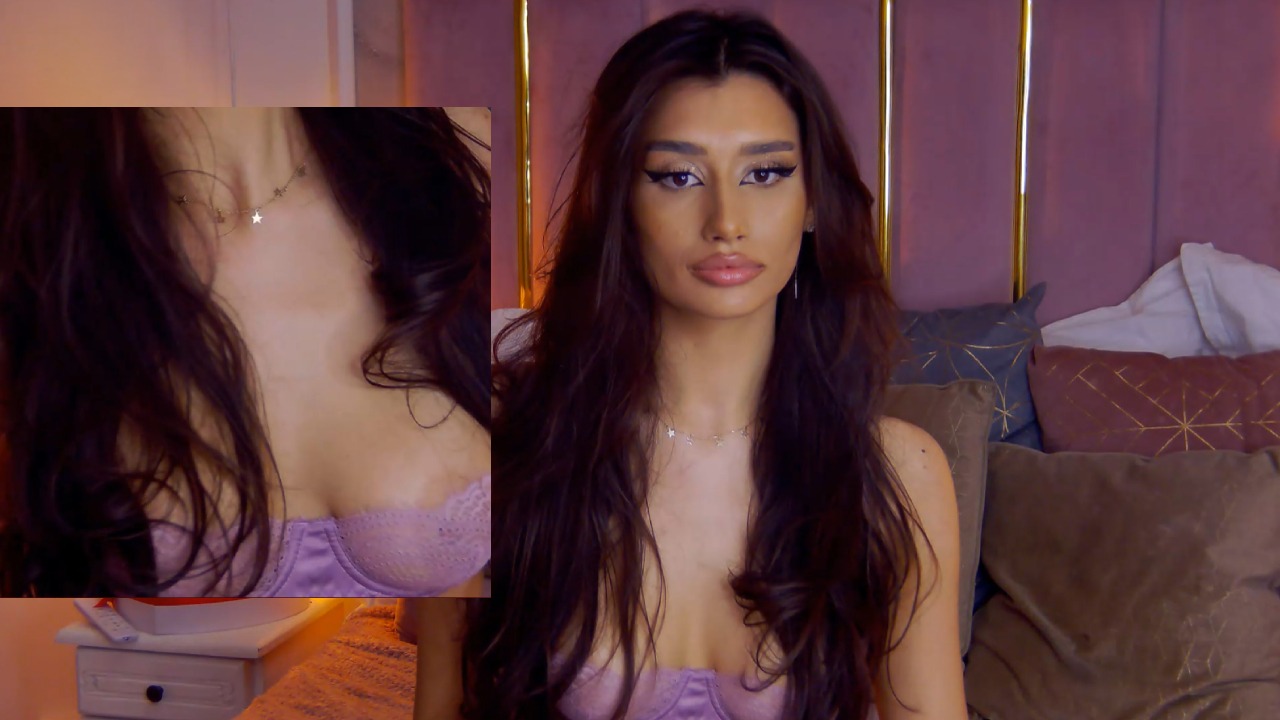
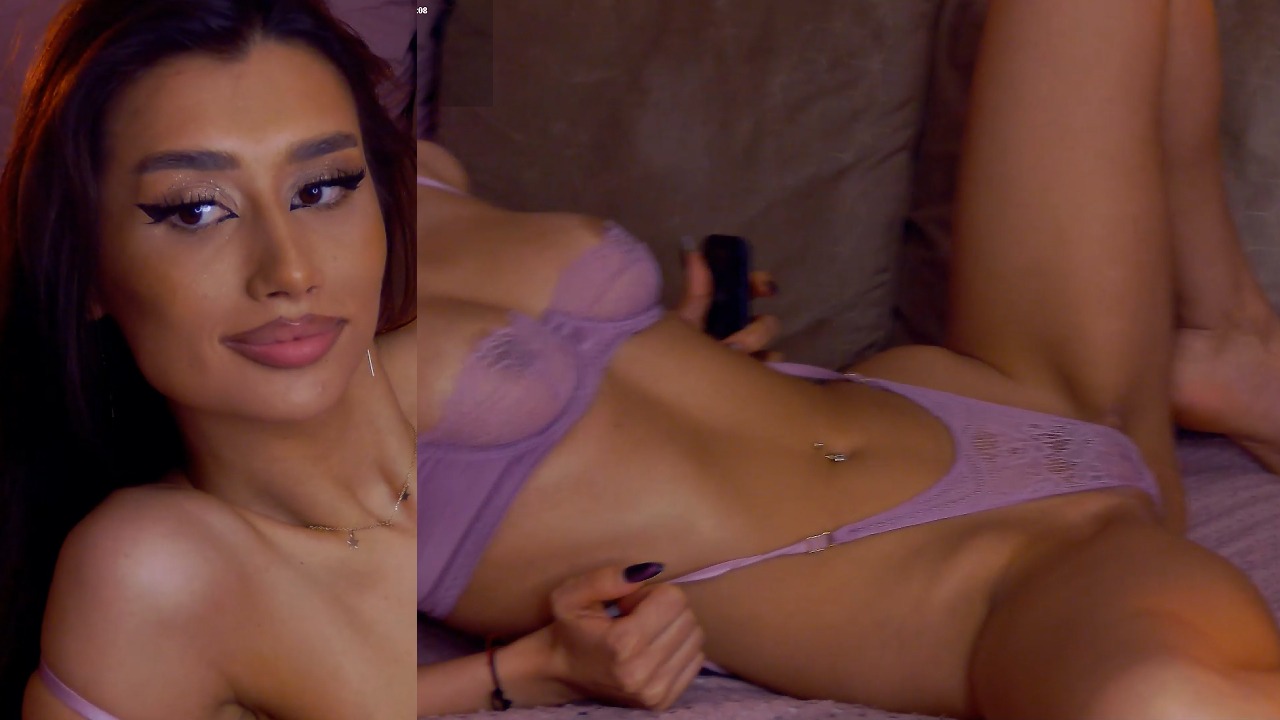
This OBS camera setup has three scenes that you can choose from:
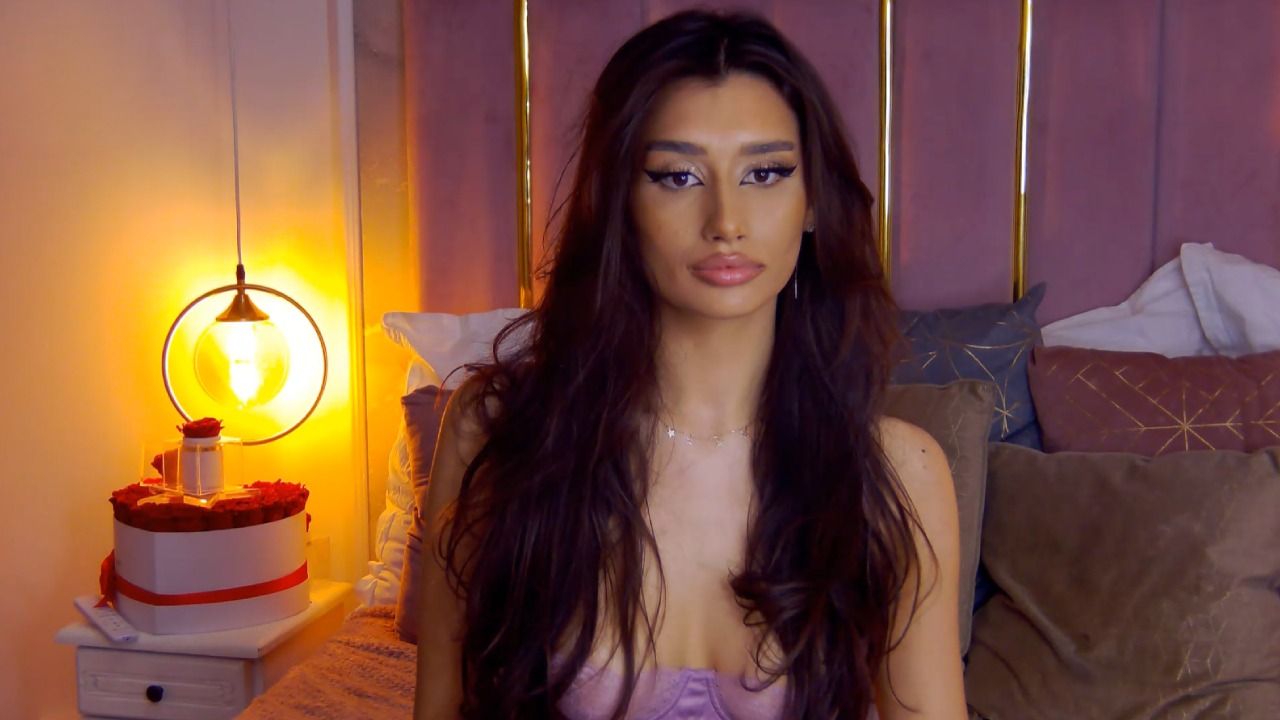
📌 MultiCam streaming instructions

You’re free to use this streaming package however you like — but we strongly recommend trying out the dual-camera scenes in different situations. Why? Because dual-camera setups can:

  • 🎥 Show more angles and movement
  • ✨ Make your stream feel more dynamic and professional
  • 👀 Keep members engaged longer

Collect opinions from your members while using this new streaming format. Their reactions can help you improve — and create even better shows.

  • 🧪 Use the provided scenes to test dual-camera streaming in various room setups.
  • 🎯 Explore different camera angles and layouts to identify the most effective positioning for your stream.
  • 📢 Collect feedback from members who experience the MultiCam setup.
  • 📱When using multiple cameras:
    • Pay attention to mobile users — ensure sitting positions and movements are always visible on smaller screens.
    • Set the Room Topic to: #MultiCam.

🛠️ How to set up Multi-Camera Streaming?

  1. Connect Your Cameras: Ensure two cameras are connected and OBS is installed on your computer.
  2. Download the Scene Pack: Save the LiveJasmin OBS Multicam Scene Pack to your preferred location.
  3. Extract Files: Make sure to extract the LJ_OBS_pack.zip file to “C:\” This step is very important for proper functionality.
  4. Import the Profile:
    • Open OBS Studio.
    • Navigate to Profile in the menu bar and select Import.
    • Locate the extracted LJ_OBS folder and click Select Folder.
  5. Load the Scene Collection:
    • Go to Scene Collection in the menu bar and select Import.
    • If you encounter the following error message: “OBS can automatically find importable scene collections from supported third-party programs. Would you like OBS to automatically find collections for you?

      You can change this later in Settings>General>Importers.” click No to proceed.

  6. Select the Scene:
    • Under the Collection Path, click the three dots ().
    • Open the LJ_OBS folder and select LJ_OBS_SCENE.json.
    • Name the scene LJ_OBS_Scene and click Import.
  7. Activate the Scene:
    • Under Scene Collection, click on the newly imported LJ_OBS_Scene to activate it.
  8. Adding cameras:
    1. Set Up the Secondary Camera (Smaller Stream):

      • Select PiP_propS under the Scenes tab.
      • Double-click Small_c under the Sources tab.
      • In the Device dropdown, select the secondary camera (the one you want to use for the smaller video stream).
      • Adjust the following settings: Resolution: 1920×1080, FPS: 30 and click OK to save.
    2. Set Up the Main Camera (Larger Stream):

      • Select PiP_propL under the Scenes tab.
      • Double-click Large_c under the Sources tab.
      • In the Device dropdown, select the main camera.
      • Adjust the following settings: Resolution: 1920×1080, FPS: 30 and click OK to save.
  9. Starting the Virtual Camera

    1. In OBS, click Start Virtual Camera.
    2. Log in to JasminCam.
    3. Under the Camera Selection dropdown, choose OBS Virtual Camera.
    4. Under the Microphone Selection dropdown, select your desired microphone.
    5. Click Go Live to begin streaming.

📌 How to use

  • Switching Between Single and Dual Camera Setups

    • To switch to a single camera setup, select the SingleCam source. This uses the main camera without masks.
    • To return to a dual camera setup, switch to DualCam Pip or DualCam Split sources.
  • Changing Between Picture-in-Picture (PiP) and Split Modes

    • Simply toggle between the DualCam Pip and DualCam Split sources to adjust the display mode.
  • Additional Scenes

    • The setup includes additional scenes designed for masking. These are not intended for use during a livestream.

📹 Video Guide

Table of Contents

Related topics

"Hide My Face" Option

1. Overview

The “Hide My Face” option lets models hide their faces in their profile pictures and during performances by using accepted methods. This feature enables performers to connect with their audience while maintaining their privacy, which is important for those who want to protect their identities.

Additionally, this option may make the experience more exciting for members by adding an element of mystery to these models, making them even more intriguing.

If “Hide My Face” is selected, make sure your face remains ALWAYS hidden in your profile, content, and live streams.

2. How to enable?…

Recurring Model Feedback – Video Survey

Frequently asked questions

How should the recurring feedback video be recorded for couples?

Couples should record the recurring feedback video one by one, not together.

Before going online, which type of video is mandatory to upload?

It is mandatory to upload a recurring model feedback – survey video to be able to go online.

Where we need to upload the (recurring feedback) video survey?

You can upload the video survey in your Jasmincam5 or mobile application.

At LiveJasmin, your safety and well-being are our top priorities. To maintain the security and legitimacy of all model accounts, we’ve introduced a new feedback system. We are legally obliged to do so to ensure our models’ safety and protection.

Please note, uploading a survey video is a mandatory requirement before going online. We value your honest feedback, so please answer truthfully; expressing only positive things is not necessary.

To make the process as easy as possible, we have defined 3 statements addressing the security and welfare of models.  

We ask that you read them carefully and if you agree with each statement, please repeat them in your video submission. However, if you do not agree with one or more of these statements, we ask you to clearly state your disagreement and indicate the reasons in your video. You will find the statements at the bottom of this page. 

We want to assure you that your video feedback will be kept strictly confidential and will not be shared with anyone, including your studio if you are affiliated with one. 

The uploaded survey should contain the following:

  1. Say your full legal name.
  2. Make the following statements if you agree to them:
    1. „I willingly chose to work on LiveJasmin.”
    2. „No one forces me to do anything, I control my own work.”
    3. „I am fairly compensated for my work.”

You can record your video statement in your own language – the most comfortable way for you. To make it even easier, you have the option to change the application language, so the text of the statements will appear in that language. 

The supported languages are English, Spanish, Romanian, Russian, and Hungarian.

Please answer in full honesty, and if any of these statements are not true, please explain why. Your answers will be treated confidentially. Our goal is to help and support all our Models.

Newbies

✨ Newbie Program Newbie models receive exclusive benefits during…
Can’t find what you’re looking for? Contact LiveJasmin Support or talk to our AI Assistant

YOU MUST BE OVER 18 TO ENTER THE SITE

Logo

Privacy Preference Center

We process user’s data to deliver content or advertisements and measure the delivery of such content or advertisements, extract insights and generate reports to understand service usage; and/or accessing or storing information on devices for that purpose. Below you may read further about the purposes for which we process data, exercise your preferences for processing, and/or see our partners. Cookie Policy.

Manage Cookie Preferences

These are cookies that are required for the operation of our website. We use, for example, these cookies to enable the purchase functionality on our website or to route traffic to the right servers on our network.

These cookies allow the website to remember choices you make or your preferences (such as your language or the region you are in) and provide enhanced, more personal features.

We use these cookies to gain insight into how you use our site. This helps us to understand how interact with our site, what is interesting for you and how we can improve our services, and enhance the overall user experience.

We use cookies to personalize the content specifically for you, by displaying models who may be of interest to you, based on your previous activity. Data relating to your previous activity might reflect your sexual preferences.

LiveJasmin Model & Studio Wiki contains adult content.
By using the website you acknowledge that you are over 18.