Search
Search

Payout System

General Payout information

Frequently asked questions

When will the current period end?

The period end date can be checked under Statistics/Income overview menu or Payout/Payout overview section.

Can I change my payout option from standard to auto-fast?

Yes, you can freely change the payout option in your account under Payout/Payout overview tab. Make sure to make the changes in time, because if you change the settings after period closure, the payment will be made according to the previous settings.

When will I receive my money?

The payout time depends on what type of option do you have. Standard payout takes 25 days after period closure if you reached the threshold, Auto-fast payout takes 1-3 business days but it has some fee. Instant payout also available and for that models need to reach 300 USD for two consecutive periods, while studios need to collect 1000 USD.

What does payment status withheld mean?

The payment status is withheld if the amount can not be sent for some reason. In such cases, please contact our support.

What happens if I don’t reach the Payout Threshold?

You won’t receive a payout for that period. Your earnings will accumulate and carry over to the next invoicing period until you reach your Payout Threshold.

Why is my balance showing negative earnings?

If your balance and credits are showing negative amount it could be due to a possible deduction. For further investigation, please contact us via our Support Center

How and where can I add PandaBlue to my account?

Pandablue can be added the same way as the rest of the payment methods, in Model or Studio Center under Payout/Payout options tab.

I do not receive my money from the messages, why?

Some high spending members have opportunity to send free messages, make sure to keep them entertained so they will be your returning, loyal members for paid features too.
Also make sure to answer all the messages, you need to send as many replies as many messages you receive. If the issue still occurs, feel free to contact support.

How much is on credit worth?

One credit is roughly worth 1 USD.

Can I get my payment in USD through Cosmo?

If you are using Cosmo you need to register wallet for each currencies. If you are located in SEPA area, you need to have an EUR wallet to receive your income.
Outside of SEPA zone USD wallet is acceptable as well, but please make sure to check your settings before payout.

How can I change my payment details if I changed my location, moved to another country?

If you need to update your payment details after you moved to another country, please contact our Support Center and send a proof about your new location and banking details.

Where can I see my previous earnings?

If you are a Model, then you can check previous  period earnings under Statistics/Income overview menu. At the top of the page there is a dropdown menu, where you are able to set, which period you wish to view. 
As a Studio you can set a desired time frame under Payout/ Income overview panel to check previous earnings.

Will I receive my money if I close my account?

Yes, the credits you have collected will be paid if you decide to close your account. To be sure, you may include your final payout request when you are asking for the account closure.

I made a mistake when I tried to cash out crypto. What should I do?

In case of any issues and mistakes regarding payments, please contact our support, but getting in touch with the payment provider is also recommended to solve the issue as soon as possible.

Can you send me a video guide how to setup individual payment?

Yes, here it is:
https://www.youtube.com/watch?v=K7jOqSvUH4k&list=PL189OCUqNbDL-beMKLkORuuatMgRV-yVW&index=1

Is there a detailed video guide about Payout options menu?

Yes, here you can watch:
https://www.youtube.com/watch?v=PuHrYJow0FY&list=PL189OCUqNbDL-beMKLkORuuatMgRV-yVW&index=2

Can you send me a video guide about general payout settings?

Yes, here you go:
https://www.youtube.com/watch?v=KrmR27VXCEY&list=PL189OCUqNbDL-beMKLkORuuatMgRV-yVW&index=3

Is there a video guide about company payment setup?

Yes, here you can watch it:
https://www.youtube.com/watch?v=FiieSnKsVKk&list=PL189OCUqNbDJrP28LGOtW2ySIVbdaNsIV&index=1

Can you send be a video guide how to fill out company data?

Yes, here it is:
https://www.youtube.com/watch?v=dPFlvVq6aMQ&list=PL189OCUqNbDJrP28LGOtW2ySIVbdaNsIV&index=2

Is there a video guide about managing director registration for payments?

Yes, here it is: 
https://www.youtube.com/watch?v=I1GMbuRtgbk&list=PL189OCUqNbDJrP28LGOtW2ySIVbdaNsIV&ind

Can you send me a payment setup introduction video guide?

Yes, here you can watch it:
https://www.youtube.com/watch?v=dO0dkTQQEiM&list=PL189OCUqNbDJOnDBL21mb8cEL18EEL_9s

Can you send me a short video guide about payout options?

Yes, here you are:
https://www.youtube.com/watch?v=oAVrzX32Q6A&list=PL189OCUqNbDJOnDBL21mb8cEL18EEL_9s&index=2

Can you send me a video guide about payout overview?

Yes, here you are: 
https://www.youtube.com/watch?v=Rh08uIuNejc&list=PL189OCUqNbDJOnDBL21mb8cEL18EEL_9s&index=3

Can you send me a video guide about income statistics?

Yes, here it is: 
https://www.youtube.com/watch?v=gdLIHBpU6EI&list=PL189OCUqNbDJOnDBL21mb8cEL18EEL_9s&index=4

Is there a video guide about payout FAQ?

Yes, here you can watch it:
https://www.youtube.com/watch?v=56b_M9O99ek&list=PL189OCUqNbDJOnDBL21mb8cEL18EEL_9s&index=5

Can you send me a video guide how to change payment method?

Yes, here it is: 
https://www.youtube.com/watch?v=54SoZW1sjs0&list=PL189OCUqNbDIiFJq3mfiE5xfgkb-wGxcj

Is there a video guide about email confirmation for payment method change?

Yes, here you can watch:
https://www.youtube.com/watch?v=xabiKy09QMY&list=PL189OCUqNbDIiFJq3mfiE5xfgkb-wGxcj&index=2

Can you send me a video guide how to confirm my identity upon payment method change?

Yes, here is the guide:
https://www.youtube.com/watch?v=rsaYsYwgy3A&list=PL189OCUqNbDIiFJq3mfiE5xfgkb-wGxcj&index=3

Can you send me a video guide how to choose my new payment method  after I asked for a change?

Yes, here it is: 
https://www.youtube.com/watch?v=-IxbphmFdJs&list=PL189OCUqNbDIiFJq3mfiE5xfgkb-wGxcj&index=4

Where can I see my referred model and members?

The referred models and members can be checked in Model or Studio Center under Referrals tab.

How do I know if the payment method change was accepted?

If you provided all the necessary information upon payment method change our support will inform you via when they accepted the new method or if there is anything else they need.

When will I receive my money after I click on withdraw button?

The withdraw function is available if you have standard payout method. It appears after the period closure and if you choose this function you will receive your earnings in 1-3 business days instead of 25. It is important to know that it has 1%, minimum 5 USD fee.

What should I write into the billing address section?

As the billing address you should add your official address where you live or the registered address of your company.

All model earnings are paid out to the Studio?

Yes all earnings from Models registered undered a Studio will be transferred to the Studio owner.

How long does it take to approve a new payment method?

To accept the payment method usually takes a few business days, and when it is ready our Support will notify you via email.

Is it possible to transfer my earnings to another model account?

It is not possible to transfer earnings between model accounts.

How long does it take for surprises to show up in my earnings?

Online surprises should be visible right after you received them. Offline surprises will be added to your income after you replied to the surprise message.

What are the working hours of the finance department?

The finance department is working in business hours, from Monday to Friday.

Does the platform report earnings to tax authorities?

Reporting earnings to the tax authorities is the responsibility of the performers. We suggest you to contact your local authorities for more information.

Can I use someone else’s payout details to receive my earnings?

You are only able to set your payout method with your own payout details, using someone else’s data is not a possibility.

Where will I receive the URL to receive my earnings, if I have crypto as the payment method?

When your payment is due, your payment provider will send you the URL via your provided email address.

The ‘Payout’ tab does not appear in my individual model account, why?

If you have individual model account and the Payout tab does not appear, it is possible that you registered your performer account under a Studio. To find out, click on the person icon in the top right corner to see if you can switch to Studio account to set the payout options.

The payment status says ‘executed’ and ‘withdrawn’. What does it mean?

If the payment status shown as executed it means that it has been processed and sent from our side, you will receive it soon. Withdrawn means that the payment is being processed but has not sent yet.

How much is the minimum price per minute if I am not a new model and do not have promo either?

If you do not have ongoing promo period and newbie status, the minimum price per minute you may set is 2.49

What are the available payment methods?

The available methods are listed based on the region in the Model and Studio Center upon setting up the payment, so if you do not see a particular method, it means that it is not available at your location.

Standard Payout

Payouts are sent for invoicing periods of 14 days, usually twice a month. You need to reach your Payout Threshold – minimum $100 – in order to receive payment. The Standard Payout Date of an invoicing period is 25 days after the period. All your payouts and invoices are listed on the Payout Overview page.

Fast Payout

Instead of waiting for 25 days for the Standard Payout, you can decide to withdraw your payment any time after the period ends, or set your Payout Type to Automatic Fast Payout, in order to automatically receive your earnings immediately after an invoice period. The fee for Fast Payout is 1% (min. $5, max. $150) of the payout amount. You can set your preference at the Payout Options page. You still need to reach your Payout Threshold – minimum $100 – in order to receive payment.

Instant Payout

Provided that you reached your Payout Threshold, you can ask for Instant Payout of your earnings, without waiting the end of the Standard invoicing period. The fee of the Instant Payout is 3% of the payout amount (min $5), and it will be processed within one business day after your request. To use this feature, Studios need to earn at least $1,000 in three consecutive periods, while individual Performers need to make at least $300 during two consecutive periods. In order to maximize the number of your payouts, you can also set your Payout Type to Automatic Instant Payout and receive your earnings automatically as soon as you reach the Payout Threshold.

Invoicing

You can set up your Billing type as a Natural Person, as a VAT Registered Individual, or as a Company. As a Natural Person, we issue Self-invoices on your behalf, while with the other two options you can choose to upload your own invoices as well. If you have selected the Upload invoice option, we will execute the corresponding payment only after the invoice is uploaded and accepted. You can find / upload your invoices and read more information on the Payout Overview page.

Payout in EURO

If you choose the EUR currency payout, the final payout amount will be exchanged from USD to EUR, based on the date when your service was performed (i.e., every day a different FX rate is applied). The rate is calculated daily, based on official mid-market range available at the database of European Central Bank. An additional 0.3% difference is applied, in order to mitigate risks. You can decide the currency of payout for the ongoing and future periods only. Studios registered in the SEPA area may only receive EUR payouts, while those in the United States can choose USD currency only.

Change of payout details

In order to change your payment method, go to the Payout Options page and click use the change link at the bottom of the page. Please make sure that you make/upload a recently taken, new Face+ID and ID picture during the process. Pictures used during any registration may not be accepted. The video below will guide you through the process.

Payment Methods

You can use the following e-Wallets to receive payment from us: Paxum, Cosmo Payment or WebMoney. Furthermore, we can settle EUR SEPA and USD ACH transfers from our corporate accounts directly to your bank account. In addition, we process local bank payments in Latin America with the help of Pandablue and Finash. Crypto currency payouts are also available.

You can get your payment to your Paxum wallet from where you can withdraw your funds to your local bank account or to your Paxum UPI card. Receiving a payment from us will cost you €/$ 0.75 per transfer. Additional costs associated with your Paxum account can be found on their website.

You can get your payment to your Cosmo Payment wallet and access your funds through your debit card instantly. Receiving a payment from us will cost you 0.4% of the transfer amount. Additional costs associated with Cosmo Payment can be found on their website.

You can get your payment to your WebMoney purse and access your funds several ways through WebMoney Transfer system, including external card, bank transfer or 3rd party e-wallets. Receiving a payment from us to your WMT (USDT) or WMZ (USD) purse is -2.25% of the transaction amount. Additional costs associated with WebMoney can be found on their website.

If your bank is located in Europe (SEPA area), you can receive payment directly from our company bank account to your bank account in EUR currency for a cost of 1% (minimum €5, maximum €300) of the transaction amount. The minimum Payout threshold is $300.

If your bank is located in the United States, you can receive payment directly from our US bank account as an ACH Domestic transfer to your US bank account in USD currency, for a cost a fee of 1% (minimum $5, maximum $300) of the transaction amount.

If your bank is located outside of the SEPA area, EUR payouts cost 1% of the transfer amount with a €30 minimum and a €300 maximum, while USD payments cost 1% of the transfer amount with a $50 minimum and a $300 maximum. The minimum Payout threshold is $300.

Pandablue offers fast, localized withdrawal methods such as domestic currency bank transfer, for a transparent fee of 1% in Asia and Africa, 0.5% in Canada, and 1% to 3.5% in LATAM. Read more about Pandablue at their website.

If you use USD currency and this solution is available in your account, you can receive local currency transfer to your bank account for a fee of $5 – $15, or to your Finash Debit Card where an ATM withdrawal costs $3 only.

Read more about Finash at their  website. 

We can send crypto payments to you safely. When your payment is due, you will receive a crypto cash-out URL from our provider TripleA or CoinSmart where you can translate your USD/ EUR payout to BTC, ETH, or USDT at an exchange rate. For more information freely visit their website. Receiving a crypto payment from us costs 3.8% of the transacted amount.

We can send payment to any VISA or MasterCard card of yours. You will provide your card details at the secure page of our 3rd party processor. The fee of transferring your funds to your card is 2.3% + 2.5 USD/EUR.

The maximum payout amount is USD 2,500 (or the EUR equivalent).

Available for accounts with Natural Person or VAT Registered Individual billing types only.

Not available for Companies or users from USA.
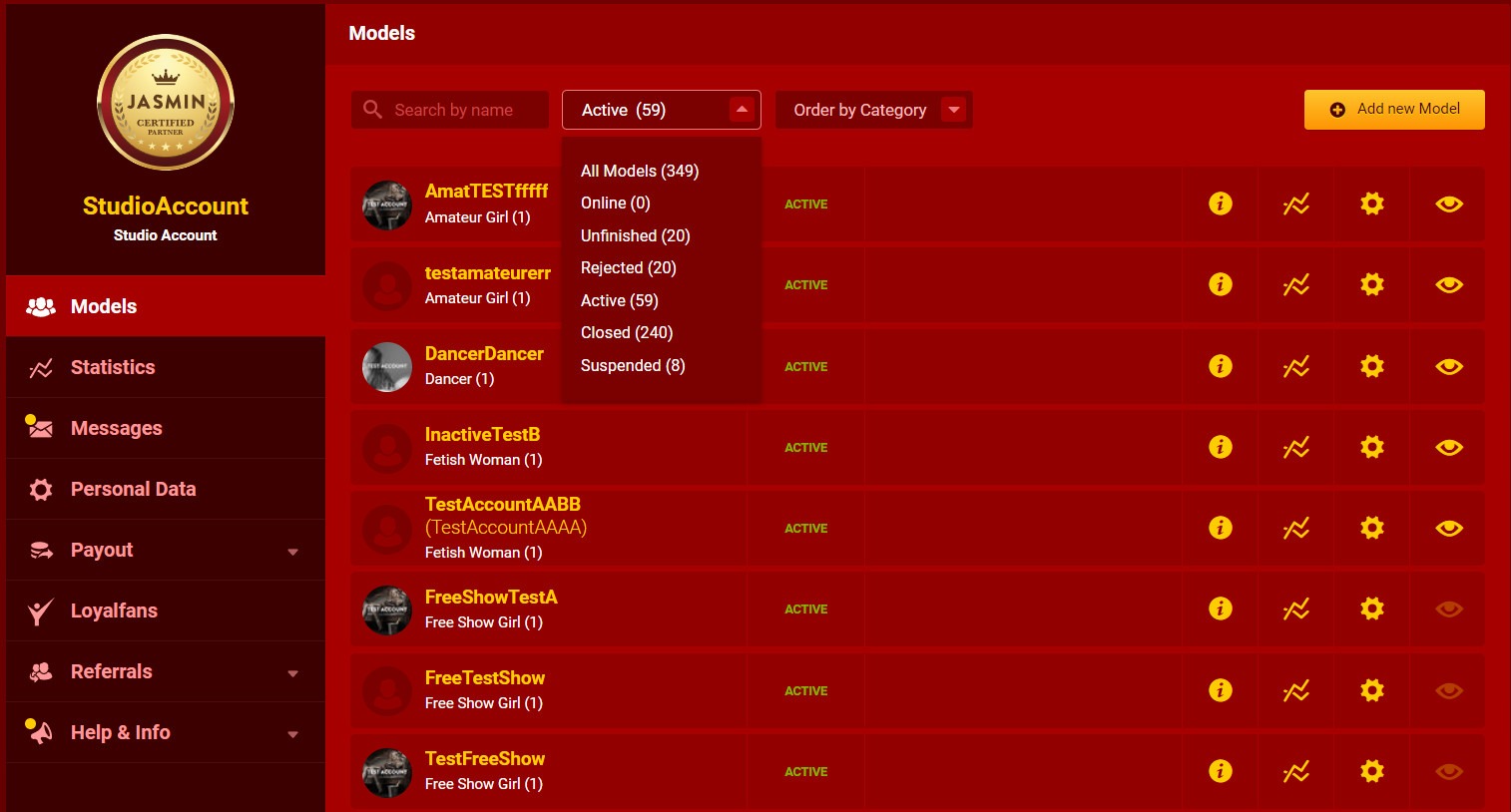
Table of Contents

Related topics

Limited studio access

Frequently asked questions

Can you provide me a guide about limited studio access?

Yes, here it is:
https://www.youtube.com/watch?v=WUVKmFDUS1I&list=PL189OCUqNbDIBQqP842yr_v9AYy2KCIEz&index=1

Can you provide me a guide about how to set up the limited studio access?

Yes, here it is:
https://www.youtube.com/watch?v=v3LLIfaHS1s&list=PL189OCUqNbDIBQqP842yr_v9AYy2KCIEz&index=2

Purpose

In order to make managing your Studios more comfortable, we have created the option to create Limited Accounts for one of your employees. Using the Limited Account, your colleague will be able to handle the most important functions of your Studio in your absence. Of course since we respect your privacy, not all information and features are available through a limited account.

Video Guide…

Studio Center

Frequently asked questions

I lost access to the registered e-mail address of my account. How can I change it to a new one?

If you are logged in to your acount, you can change your e-mail address in your Model Center top left corner by clicking on the settings (gear) icon. if you cannot access your account, then you need to contact our Support Team via e-mail (help@livejasmin.com).

How can I access my Model account if I am the Studio owner too?

If you are the studio owner too, it is possible that you registered yourself as a model with the same credentials. In that case you may access your Model account from the Models menu by clicking on your display name.
However if you used another email address upon registering yourself as a Model, make sure that you add the correct one to log in to your Model Center and JasminCam.


I created a Studio account instead of a Single account. Is there a possibility to change my Studio account to a Model account?

You can either register a new single account or to register a Model account under your Studio account, which you can use and stream on our site.

Who can reactivate an inactive Model account?

The Studio owner can change the status to inactive or reactivate inactive Model accounts that are registered in the Studio. If the account is under suspended or rejected status, then you need to contact our Support team.

What is the promotion period reset for?

Only Studio owners has this option within the Studio Center to reset the promotion period for their models, but only once.

Members or Models can see my Studio name?

Only the Studio owner or who you give limited studio access has possibilty to see your Studio name, which is displayed in the top right corner of the Studio Center. Models and Members are not able to see it.

There is no possibilty  to change name of the Studio name or the registered owner.

We are not able to change the name of the Studio. Also the owner of the Studio account needs to remain the same person.

Welcome to your Studio Center

Congratulations! You can now start exploring LiveJasmin! However, before doing so, we kindly suggest that you read this short “Where to find what” guide to make it as easy as possible to naviagate around the Studio Center.

Models

As the owner of a Studio account, first you will see the number of your performers, and their current statistics detailed when selecting one.

You may sort your models according to the following filters:

  • All Models
  • Online
  • Unfinished
  • Rejected
  • Active
  • Closed
  • Suspended

or 

  • order by Status
  • order by Name
  • order by Category

You can register a new performer under your Studio Account by clicking on the Add New Model button on the right side.

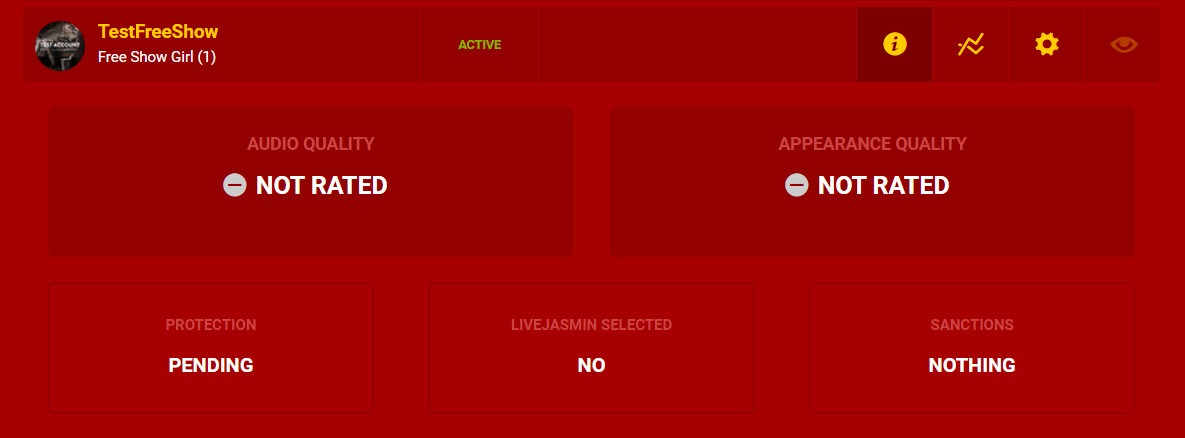
Clicking on the information icon will display your model’s current Audio and Appearance ratings, if she/he is protected or not, has received the LiveJasmin Selection Badge or not, and if your Model has committed any violations.

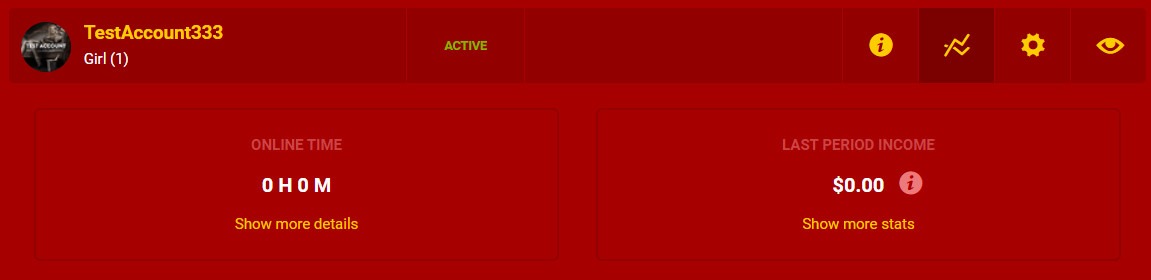
By clicking on the “Income overview” icon, you will see your performer’s level in the payout system, the time the Model spent online and their income from the last period. Under “show more stats” you can see more detailed information regarding your Models’ income.

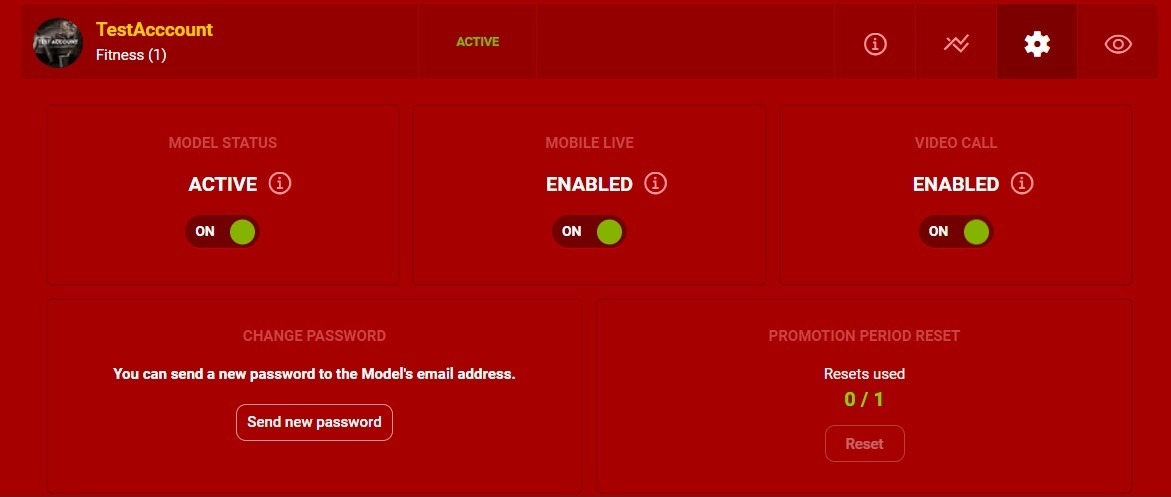
Under Account Settings you have the option to make your model’s account active or inactive, enable or disable the option for them to go online from mobile or start a video call, and change their password, if necessary.

If you click on the “View model on LiveJasmin” icon, you will see the layout of the performer’s account on the site in a pop-up window. Meanwhile, by clicking on the performer’s account name you will be logged in to the account itself.

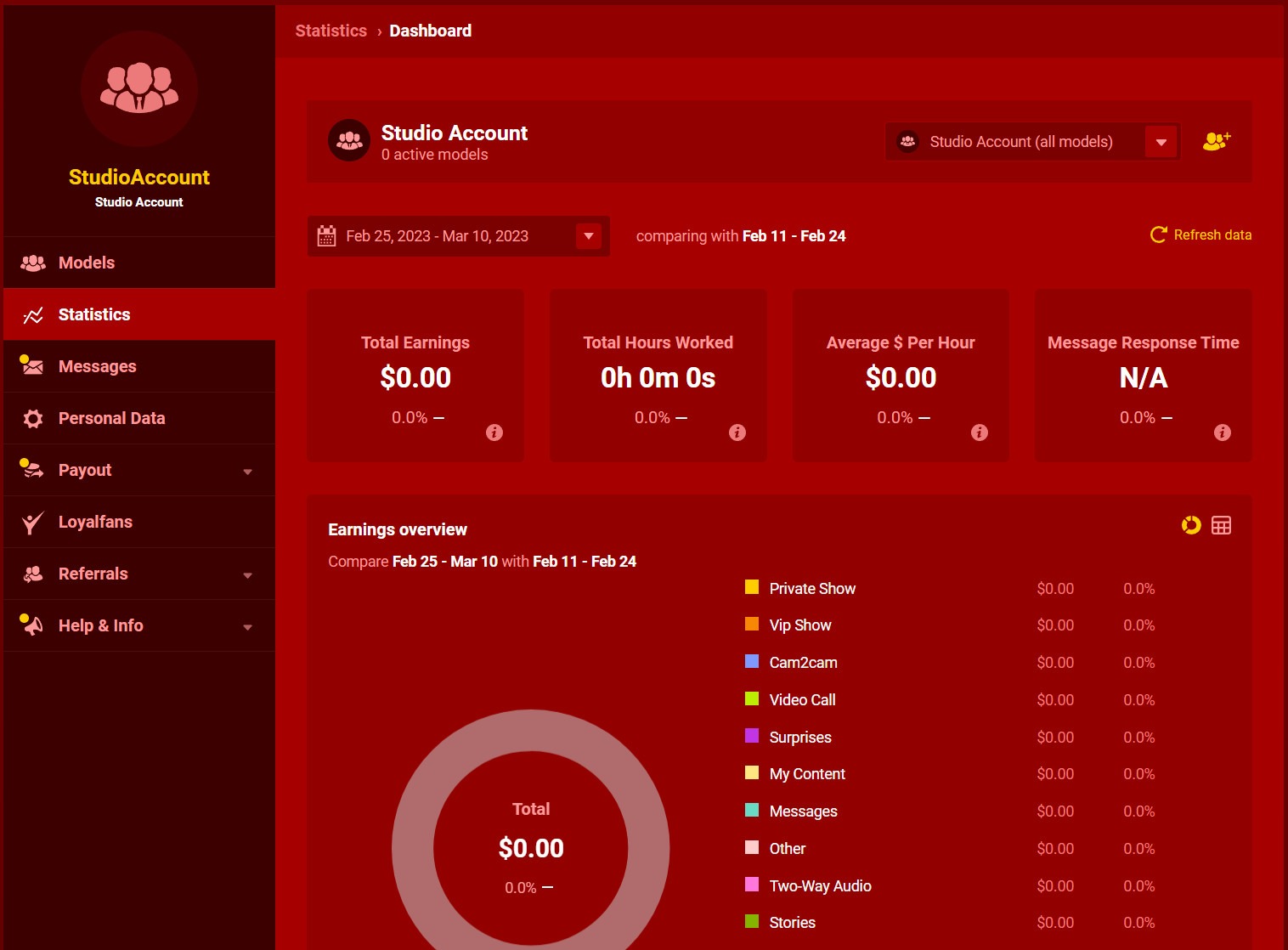
Statistics

In this menu you can check statistics of all of your Models for set period of time and compare statistics for different periods. 

Messages

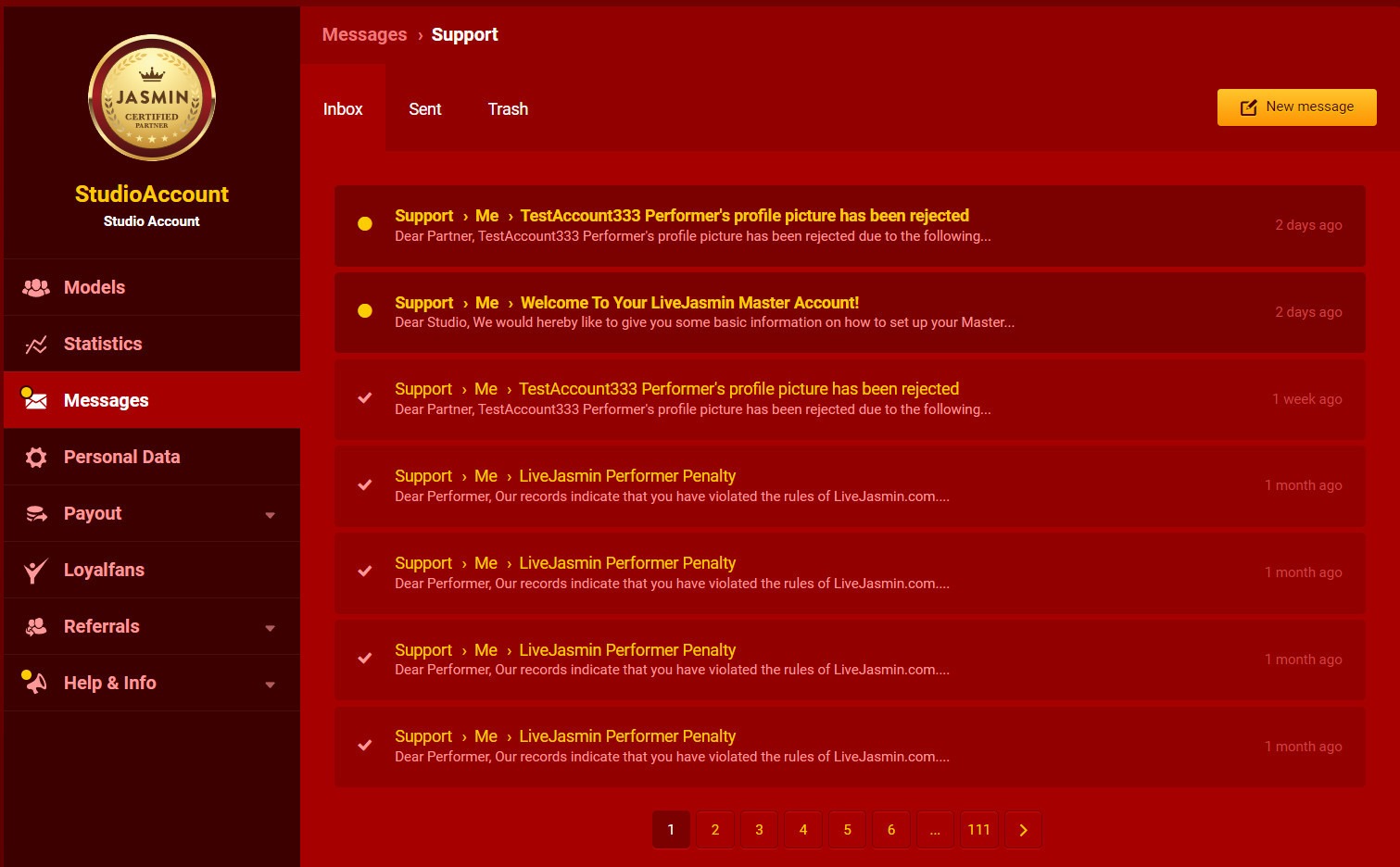
In this menu, you can access all of your messages received and sent.

Personal Data

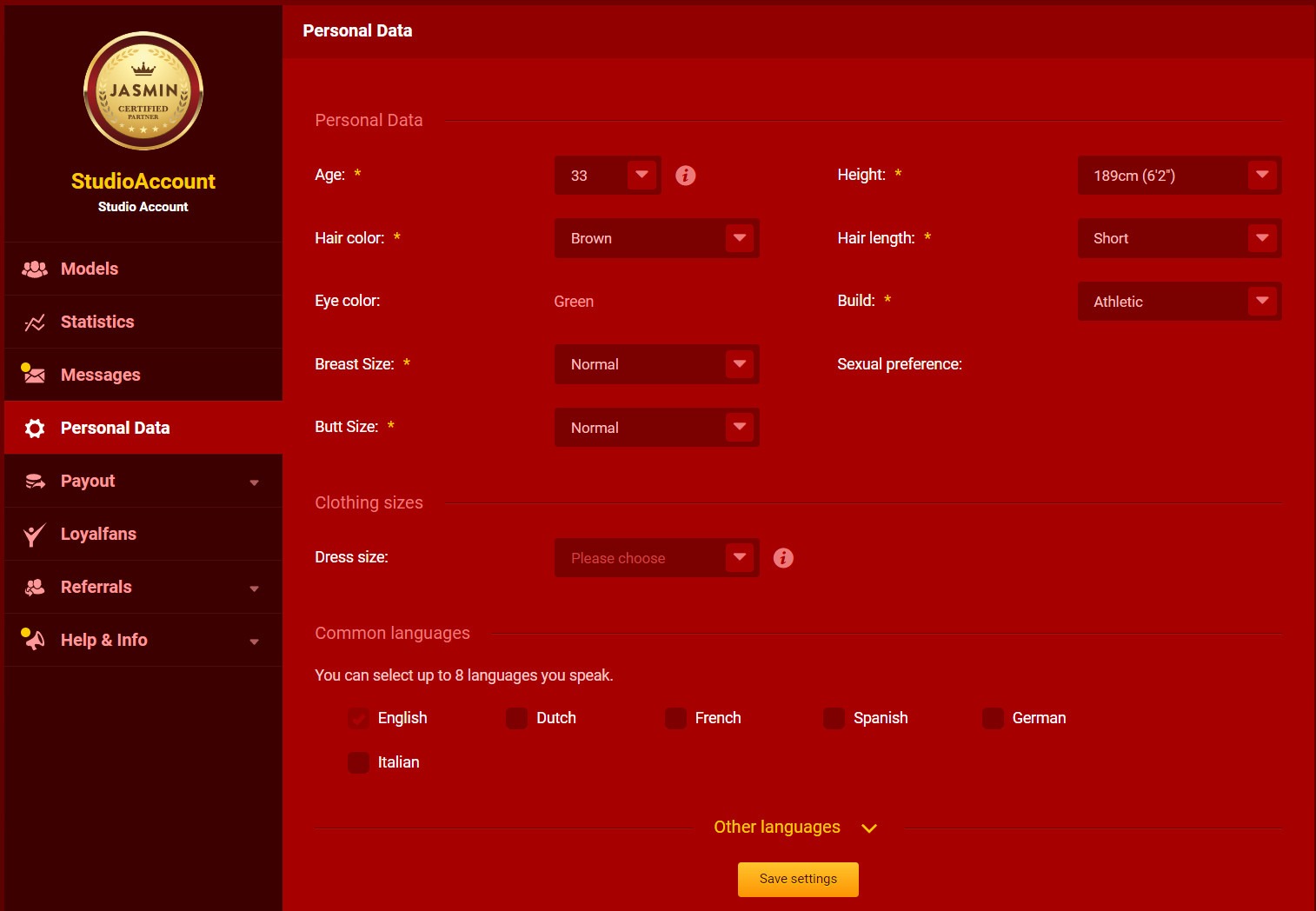
Under Personal Data, in case you are also a Model, you have the option to change details regarding your appearance and add or remove languages that you speak properly.

Personal Data: Age, Height, Hair color, Hair length, Eye color, Build, Breast Size, Sexual preference, Butt size, Dress size

Common languages: English, Dutch, French, Spanish, German, Italian

Payout

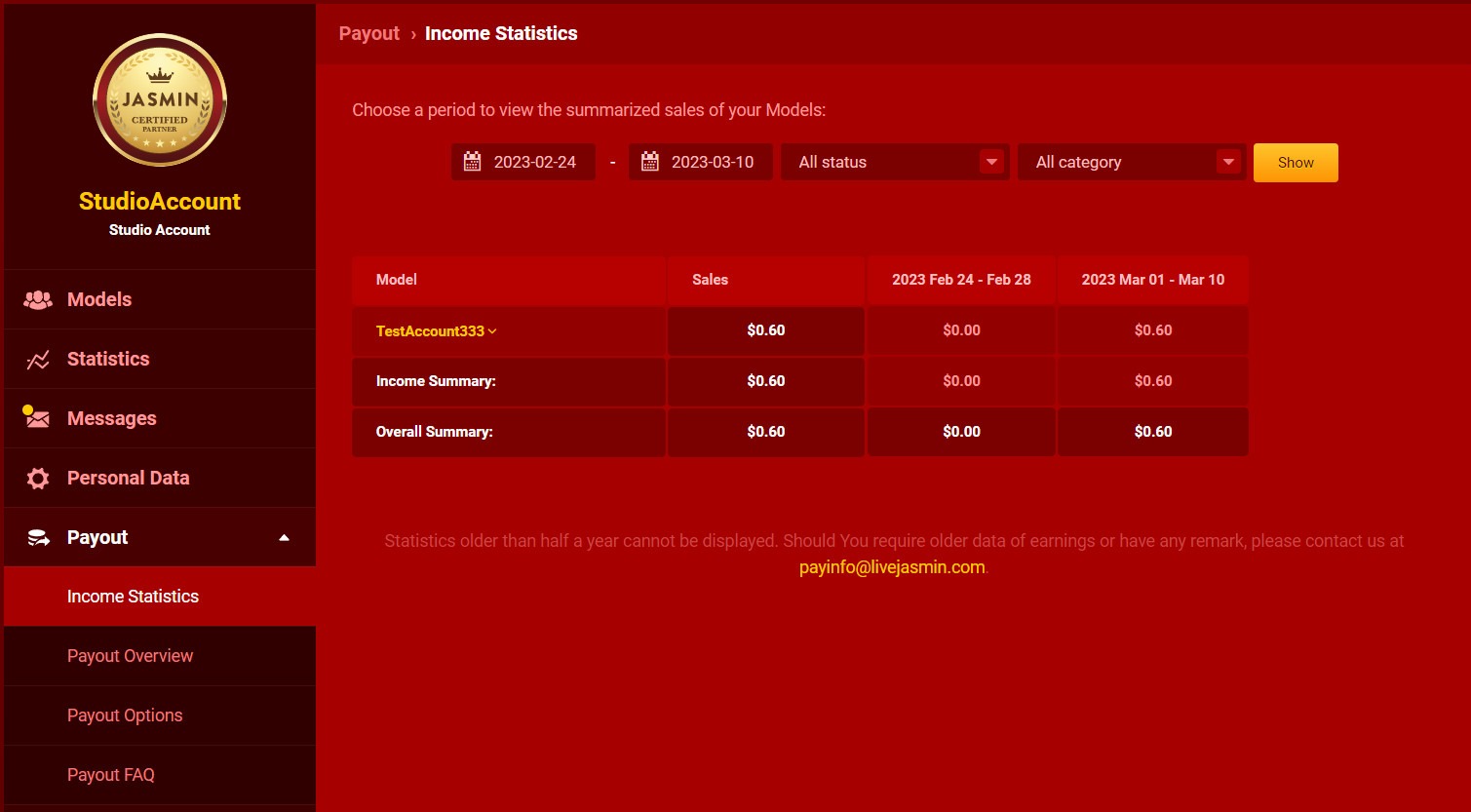
Income statistics – Here you can access all the detailed information regarding your total income. Also, you may set the period you would like to check at the top filters. Check your payslips under Payout Overview.

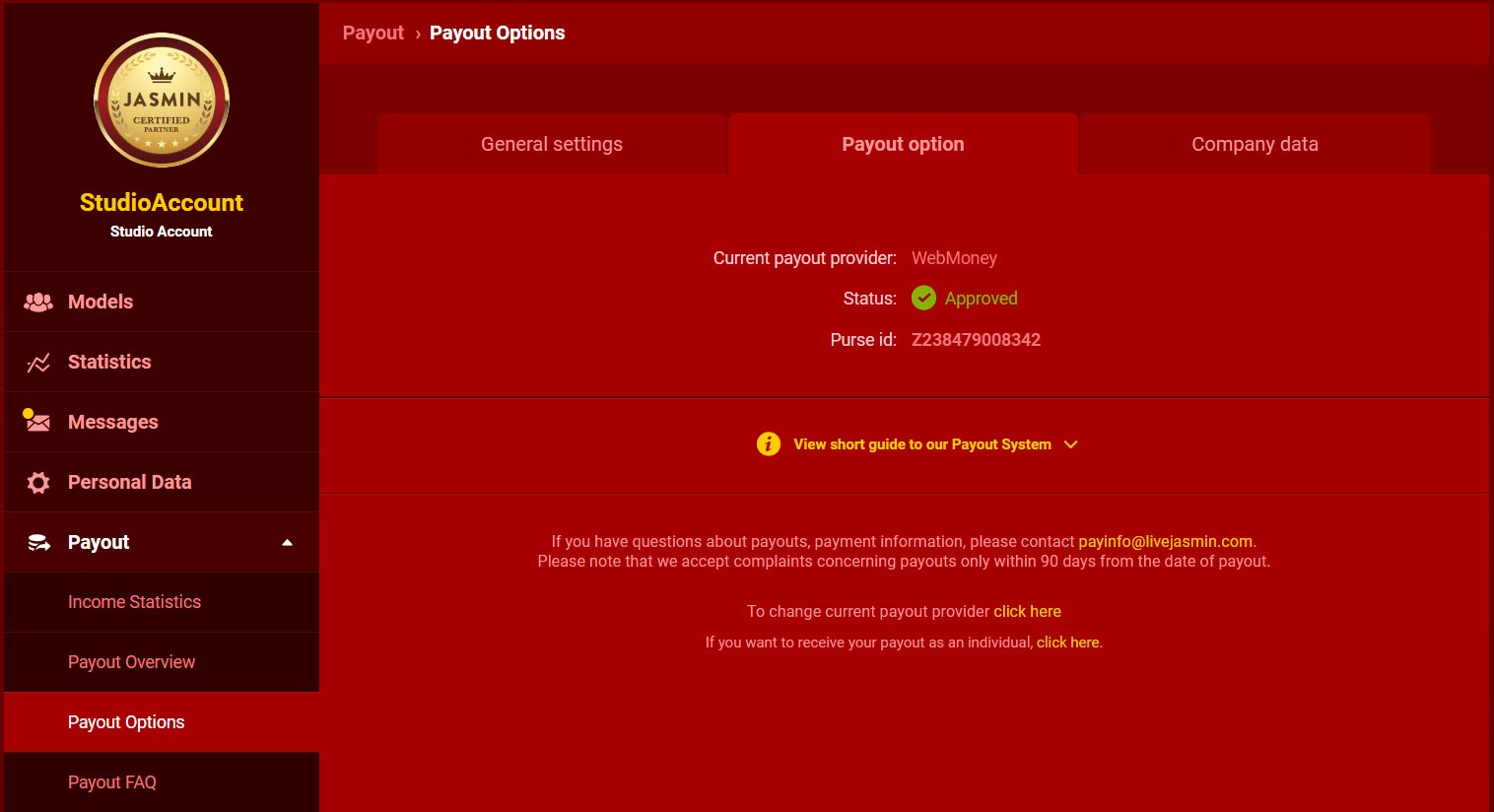
Payout options – This is where you can set the payment method, through which we will send you payouts as an Individual or a Company.

Payinfo FAQ – Here you will find all the necessary information regarding payouts and a short description of the offered payment methods.

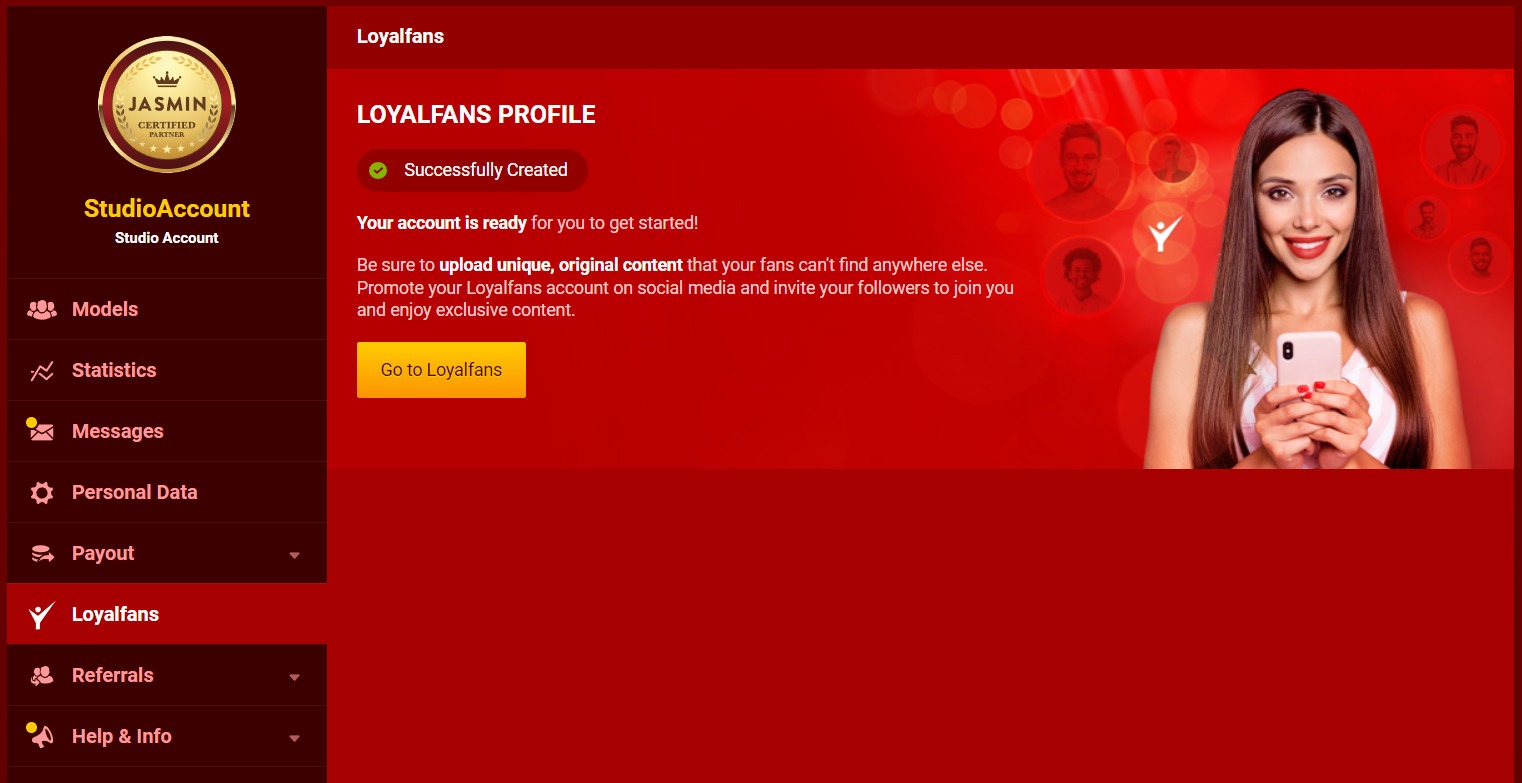
Loyalfans

Under this section, you can create your Loyalfans Studio account. Once your Loyalfans registration is completed, your Models will be able to create Loyalfans profiles under your Studio account. 

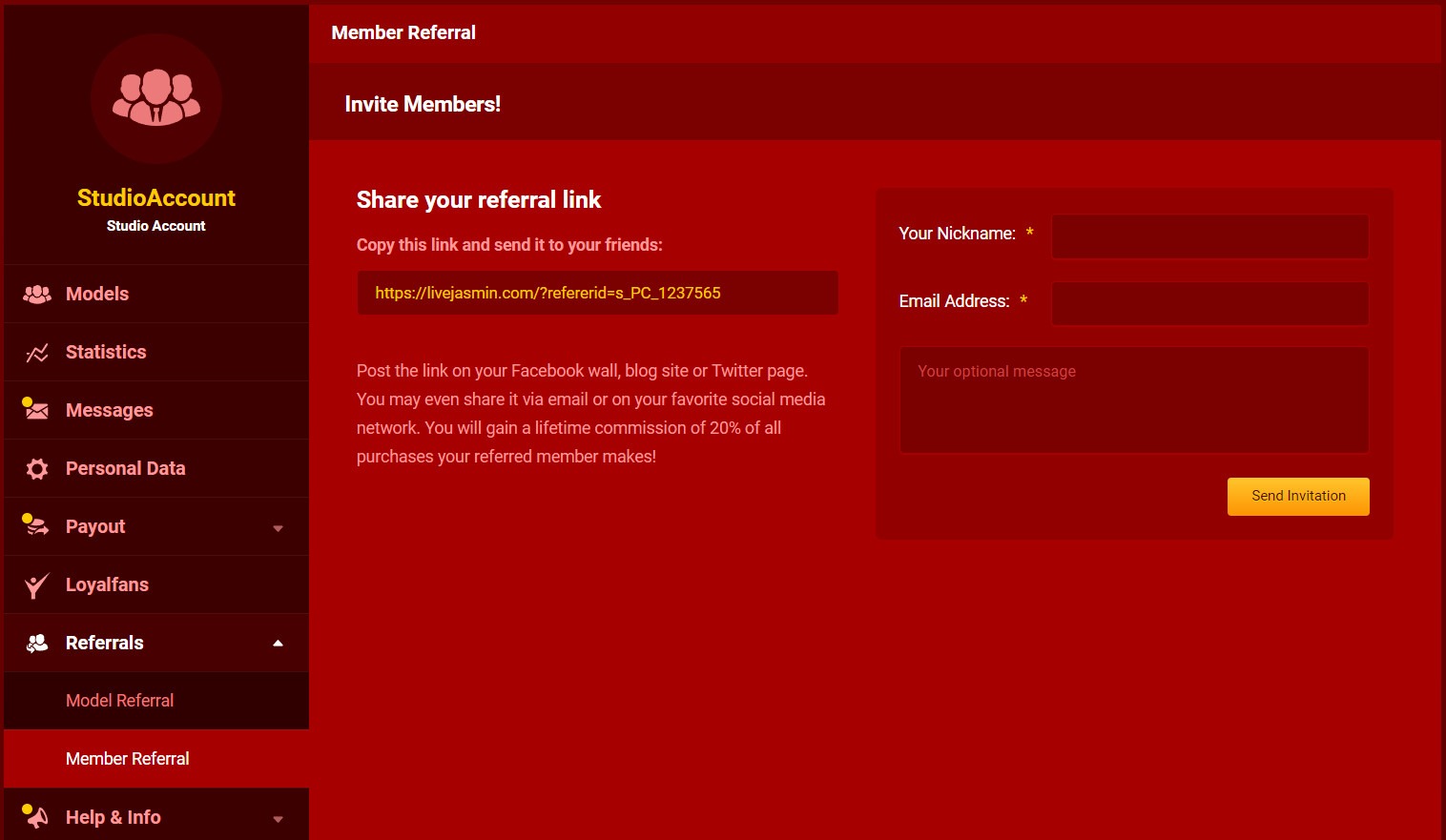
Referrals

Under this section, you can refer people to becoming LiveJasmin Members or Models.

Member Referral – you will receive a lifetime commission based on the Member’s overall spending!

Model Referral – you will receive 10% commission for one year from referred Models

Help and Info

News – As we would like to keep you as updated as possible, you will see all the information regarding changes and upcoming events under this menu. We recommend you check this daily.

Support Center – You can find answers to your questions here – and contact our colleagues, if needed.

Income Shares – Your actual earnings are based on the Level-dependent Payment System, giving you the option to increase your earnings without raising your rate per-minute. Your commission for Level-dependent Income will vary depending on your current Level. The higher your level, the higher the commission you receive.

After these menus, you can find our main Wiki page with all the necessary information you might need, LiveJasmin Rules, and the agreement you accepted earlier, in case you need any information from them.


Service Quality Improvement

Introduction 

Besides the excellent camera image quality, the Models’ appearance is a very important factor for clients. The appropriate design greatly helps to attract new customers, and your existing clients would be more likely to come back to you.

Therefore, LiveJasmin gives you all assistance to succeed in creating the ideal environment for you.

Principles 

Self-expression and quality. Be unique, enchant your visitors with your personality, and of course pay attention to present all of these tastefully.

Strive to keep a sophisticated appearance in regards your clothes and your other accessories, since the customers firstly decide to join your room on the basis of your image and the overall impression.

We cannot emphasize enough how important profile pictures are. As the saying goes, “There are no second first impressions”.

Keep your environment attractive and tidy, providing an ideal environment for your work.

Focus on how you communicate with your clients in free and private chat as well. The point is the professional attitude. Stay always respectful and do all that your visitors enjoy themselves at you.

Remember to have fun. Visitors can tell if you are happy or sad, and they love Models who engage them.

Take the time to maintain and update your account, keeping it always interesting and exciting. Upload new pictures frequently, update the Personal information in your Profile and your Willingness List, answer your clients’ messages and message those you had not heard about for a while. Check out what other options you have to improve your profile page and earn more. Activity is the key to success, spend much time online and use this time well. 

Be online with sound, some music may be played quietly in the background, which may assure the basic mood in your room. Make sure that the music is not too loud, because it can be disturbing, and if it is possible, do not let any other source of noise to be present around you (air-conditioner, street noise, other people). It is not advised to listen to TV or Radio shows as well as non-English music.

Background 

Keep your environment clean and comfortable while making it tempting to create the perfect atmosphere for your shows.

It is advisable to provide from your bedroom or your living room, but if you have the possibility you can work even from more extreme locations (bathroom, office or garden).

It is important to have a spacious and comfortable area around you, that impresses your customers. The work will be more comfortable for you and your visitors will feel your professionalism. Use pillows, comfortable armchairs or a bed. Avoid small, enclosed spaces or corners, those may create a confined feeling.

Use interesting and colorful tools and objects to avoid having a bleak background. A few plants, pictures on the wall, colorful pillows or toys can be very helpful in this. Cover the distracting background elements with a curtain or change the camera angle, and always keep order around yourself.

Good lighting is very important, since it can significantly enhance the overall impression of your room. It is better to use indoor lighting, from multiple light sources. The light should not come from behind of your back, since it can blind the camera. Make sure it is neither too bright, nor too dark in your room.

Appearance 

Pay attention to always bring the most attention to your most advantageous parts. If you have beautiful legs, wear high-heels, if you have nice and thick hair, do not hide it!

The smile is the flirting signal that attracts the attention. It is not enough to smile only with your mouth, but smiles with your eyes too.

Position your camera in a way to be clearly visible all the time, at or below eye-level. Squatting with spread legs, sitting astride, and being only partly visible are not attractive at all.

Invest in high-heels because it can turn on many of the visitors. Wear one even when you are lying on the bed, it makes your appearance sexier and your outfit more sophisticated.

Clothes 

Dress up for seduction. What you would consider extravagant on the street, you can wear for your online dates. It is worth to consider three main aspects when designing your appearance: your category, your own personal style and physical talents.

If you want to be tempting, a sexy lingerie or a mini dress is recommended. For the more conservative ones, elegant blouses, cut-out dresses and tops are recommended. For the sporty Models, gymnastic dresses or tight athletes jeans.

Use strong colors and mix them within your clothing. Do not forget the large, prominent jewelry. A large pendant, long earrings or a ring may help to emerge from the crowd. The ebony Models may effectively use powerful neon colors, since these are very prominent on them.

It also advised to present several types of clothing or keeping them nearby and vary them. You can even organize “thematic days” with various costumes and accessories (latex clothes, nurse, secretary, police officer).

For ladies
A wide range of lingerie selection is at your disposal.

Sexy Accessories: Nipple patch, girdles, body stocking, tattoos, gloves, transparent lace or silk robes.

For gentlemen
A tight t-shirt or a silk shirt for the ones who prefer the elegance can be very tempting as well. A suit and a tie looks excellent too.

Avoid to wear the following things, since they look bad in the camera: thin striped clothes (they cause camera interfere), silicone bra straps (bad glitch), tightly woven stockings, especially in contrasting colors from your skin (interference as well), large one-colored clothes (blob effect). With these you can completely ruin an otherwise impressive quality camera picture.

Make-up 

Here we would like to offer some useful pieces of advice primarily for the ladies. 

It is recommended to use stronger make-up then the regular street wear, as the camera pales everything slightly.

Use foundation with a color that equally fits well with your face, your neck and your body. To create an innocent impression, use pink, to achieve a trendy style, use orange, and to a “woman of destiny” image use reddish tones.

Contouring and highlighting

Few of us have a perfect face shape, the most desirable shape usually being oval. 

Darker foundation or bronzing powder help mask some features while pearly highlighters bring other features out. Blusher helps to accentuate and give you a healthy glow. 

The following pictures give you a guide to where to shade or highlight your face:

Round face

  • Contour: Sides of jaw temples and neck.
  • Highlight: Center of nose, center of cheeks, chin and forehead.
  • Blush: Just under the cheekbones.

Heart face

  • Contour: Temples and chin.
  • Highlight: Lower cheeks on jawline.
  • Blush: On the cheekbones.

Long face

  • Contour: Forehead by hairline, lower cheeks, chin.
  • Highlight: Above cheekbones and temples.
  • Blush: On the cheekbones.

Oblong face

  • Contour: Sides of jaw and temples.
  • Highlight: Chin, temples and above cheekbones.
  • Blush: On the cheekbones.

Pear face

  • Contour: Sides of jaw and neck.
  • Highlight: Center of nose, center of cheeks, temples.
  • Blush: At the very side of the cheekbones.

Square face

  • Contour: Sides of jaw and templates.
  • Highlight: Center of nose, center of cheeks and chin.
  • Blush: On the sides of cheekbones.

Eyes

The eyes are the mirror of the soul.

Therefore it is important to emphasize them. In connection with the eyes, the aim is to show them bigger, so it is recommended to use a mascara and emphasize the upper outline with an eye-liner (if you want to reduce, emphasize the lower outline).

…
Can’t find what you’re looking for? Contact LiveJasmin Support or talk to our AI Assistant

YOU MUST BE OVER 18 TO ENTER THE SITE

Logo

Privacy Preference Center

We process user’s data to deliver content or advertisements and measure the delivery of such content or advertisements, extract insights and generate reports to understand service usage; and/or accessing or storing information on devices for that purpose. Below you may read further about the purposes for which we process data, exercise your preferences for processing, and/or see our partners. Cookie Policy.

Manage Cookie Preferences

These are cookies that are required for the operation of our website. We use, for example, these cookies to enable the purchase functionality on our website or to route traffic to the right servers on our network.

These cookies allow the website to remember choices you make or your preferences (such as your language or the region you are in) and provide enhanced, more personal features.

We use these cookies to gain insight into how you use our site. This helps us to understand how interact with our site, what is interesting for you and how we can improve our services, and enhance the overall user experience.

We use cookies to personalize the content specifically for you, by displaying models who may be of interest to you, based on your previous activity. Data relating to your previous activity might reflect your sexual preferences.

LiveJasmin Model & Studio Wiki contains adult content.
By using the website you acknowledge that you are over 18.